What LISTEN plays
Turn on LISTEN and you stop hearing your processed audio. Instead you hear only what the clipper removed: the difference between what went into it and what came out.
It is exact, not an estimate: anything HardStop didn't change cancels out completely.
That makes silence useful. If LISTEN is silent, the clipper isn't touching the audio. (In Pro, the TP safety limiter has its own LIMIT button, covered below.)
LISTEN is in HardStop Basic.
What you want to hear
- Short ticks on the loudest hits, and silence in between. That is peak control, the job a clipper is for.
- Anything you can recognize as the performance, like a vocal line, a snare's tone or a bass note, means you are clipping too much. Lower the drive or raise the ceiling. (In Pro, Density also shows up here: see below.)
- Grit that keeps going after a hit, at pitches unrelated to the music, is aliasing. That is a quality-tier problem, not a drive problem: see Normal, HQ and Ultra.
For a full step-by-step way to set your drive with LISTEN and Auto Gain, see how to judge a clipper without fooling yourself.
Quick checks by source
| Source | Healthy | Too far |
|---|---|---|
| Drums | Clicks on the hits only | You can hear the snare's tone or the kick's thump |
| Bass | Little or nothing | A low, steady buzz under the notes |
| Full mix or master | The tips of the biggest hits | You can follow the vocal or sustained instruments |
| Cymbals and hi-hats | Brief ticks | A layer of grit that lingers as they decay |
Bass takes clipping worse than most people expect, which is why the bar for it is "little or nothing". Why clipping distorts on some sources and not others explains why.
Pro: choose which stage you hear
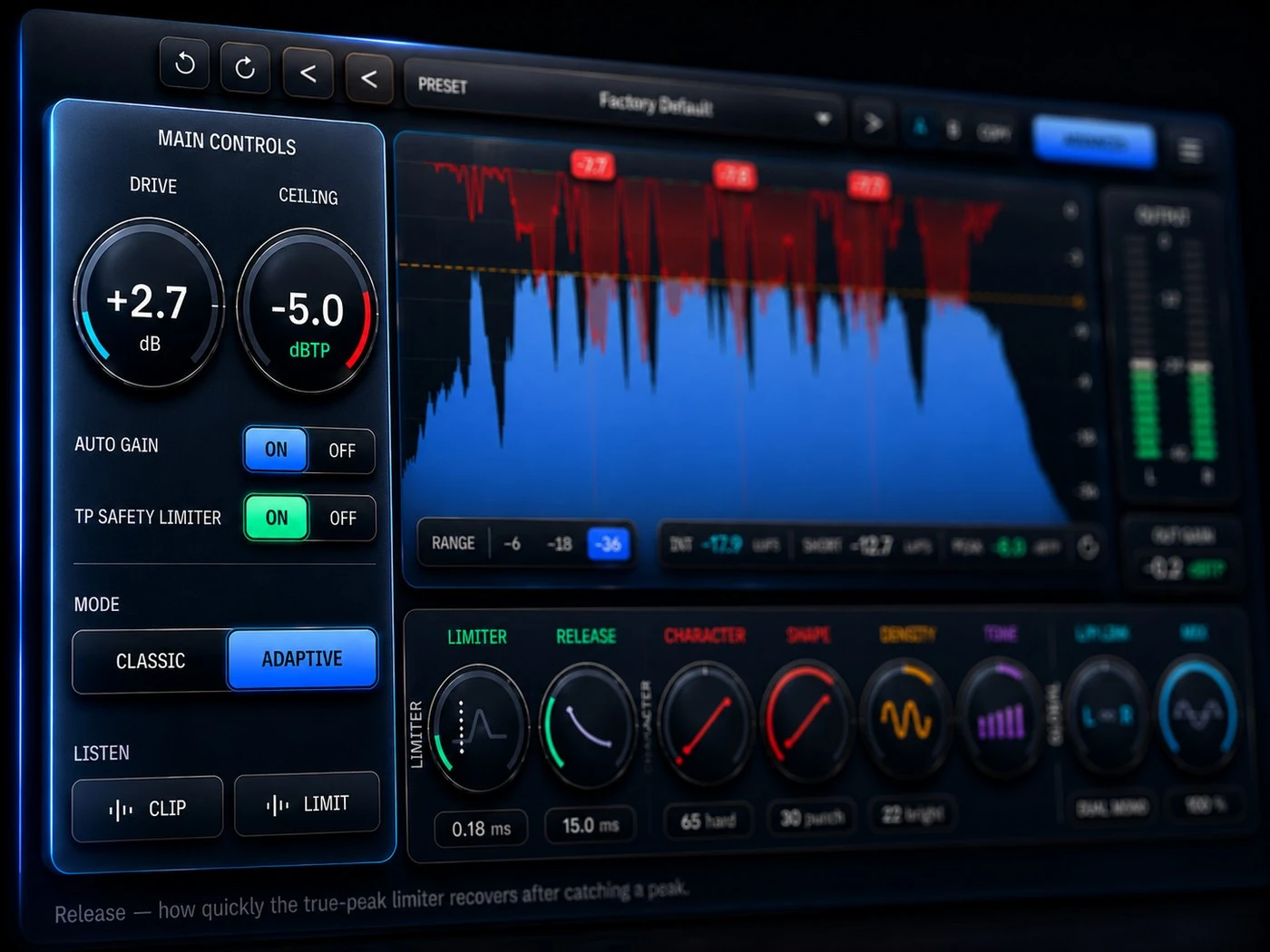
In Basic, LISTEN plays what the clipper removes. HardStop Pro lets you pick the stage, one at a time:
- CLIP plays what the clipper removes.
- LIMIT plays what the TP safety limiter removes. It needs the TP safety limiter on; with TP off it is grayed out.
Only one can be on at once. Switching between them tells you which stage is doing the work, and so which controls to reach for: Drive, Ceiling and Shape for the clipper, or the limiter's Lookahead and Release. TP safety limiter and the true-peak ceiling covers the limiter.
Density shows up too (Pro)
In HardStop Pro, Density changes your sound on purpose, and LISTEN plays that change along with the clipping. With it turned up, you will hear more in LISTEN than peak tips. That isn't extra clipping, so don't lower the drive because of it. Tone works before the clipper, so its EQ is not in LISTEN; you only hear how it changes what gets clipped.
The order that works:
- Set the clipping first, before you touch Tone or Density, using the checks above.
- Then tune Tone and Density by ear, with LISTEN off.
The big thing with Density is the punch of your transients. As you turn it up, the extra harmonics and density fill in around each hit, and the attack can slowly get swallowed. Listen to the hits, not the body of the sound: if they start to feel flattened, you've gone too far. Back it off until the punch comes back.
If you are curious what Density is adding, turn LISTEN back on and you will hear it.
Turn it off before you bounce
While LISTEN is on, HardStop's output is only the part it removed. If you bounce or export like that, you print the difference instead of your track. Check that LISTEN is off before you export.